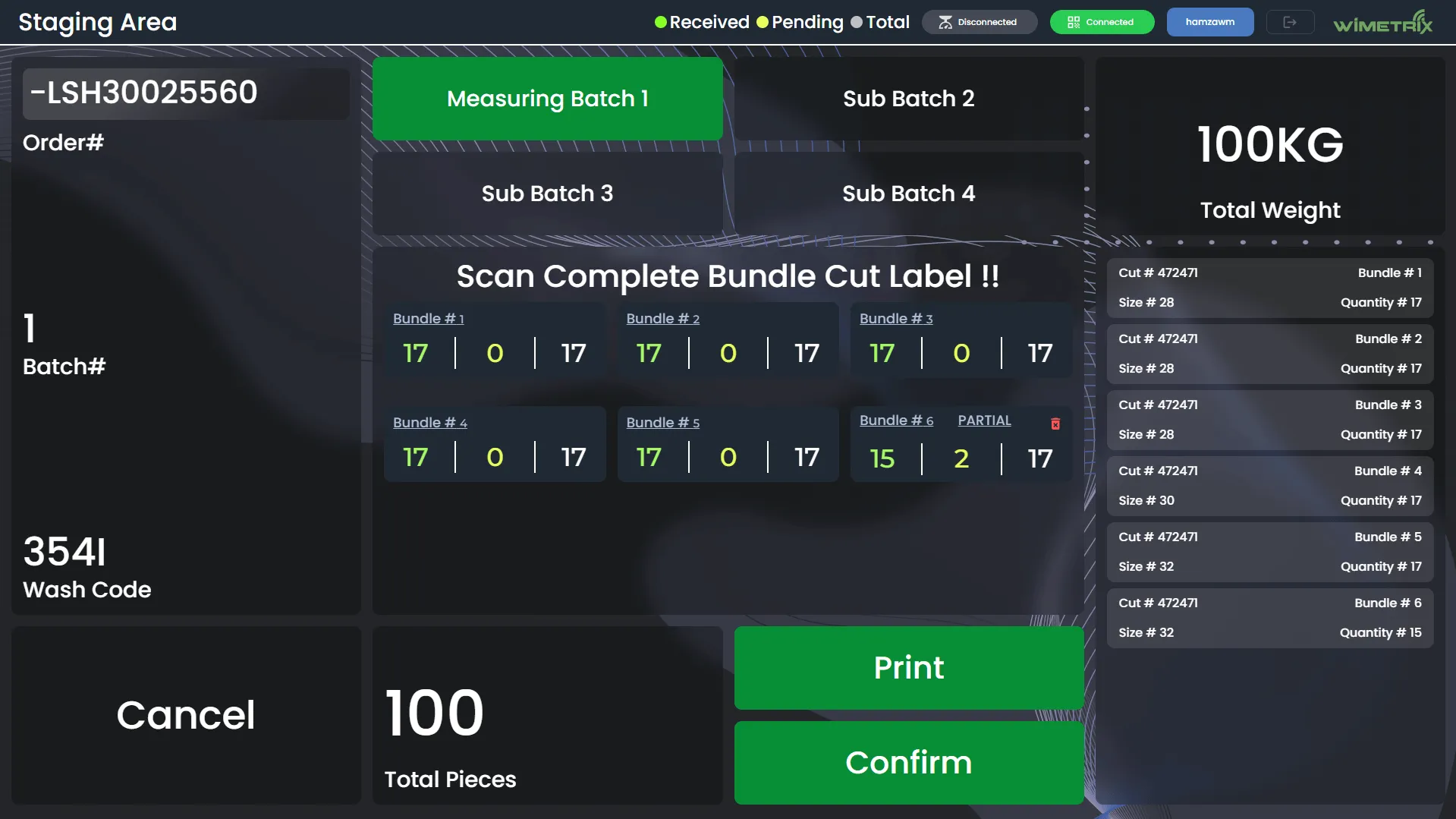

Staging Area Web App
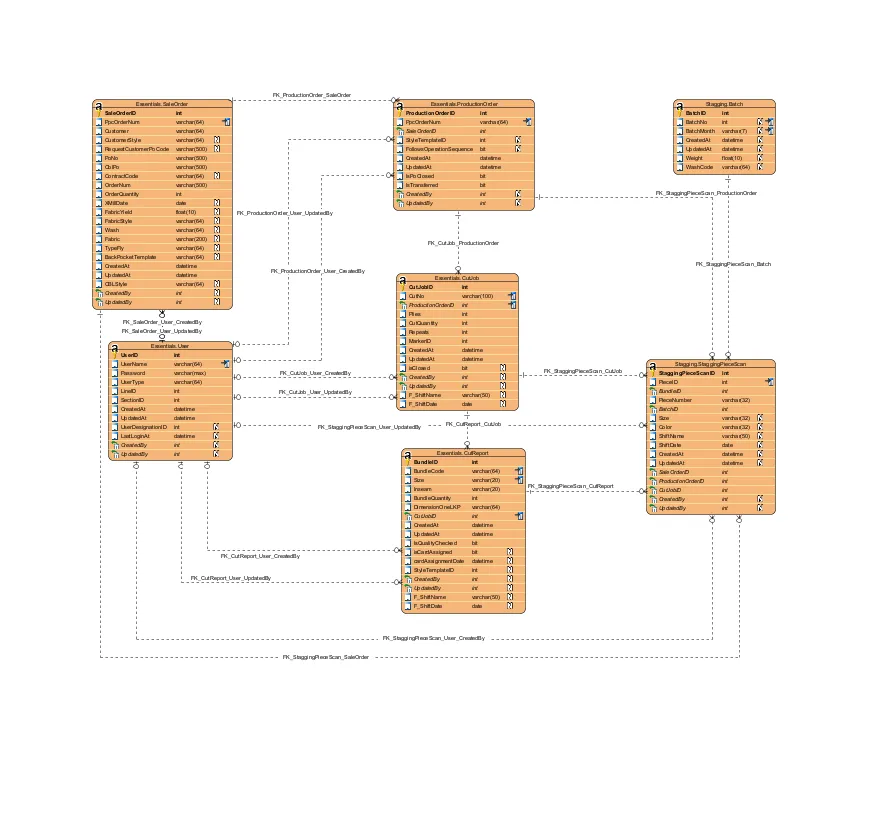
Staging Area Application is a QR application designed for batching scanned pieces from the previous (Rigid) area to prepare them for washing. This document outlines the application flow and its features
Application Flow
Section titled “Application Flow”Login Process
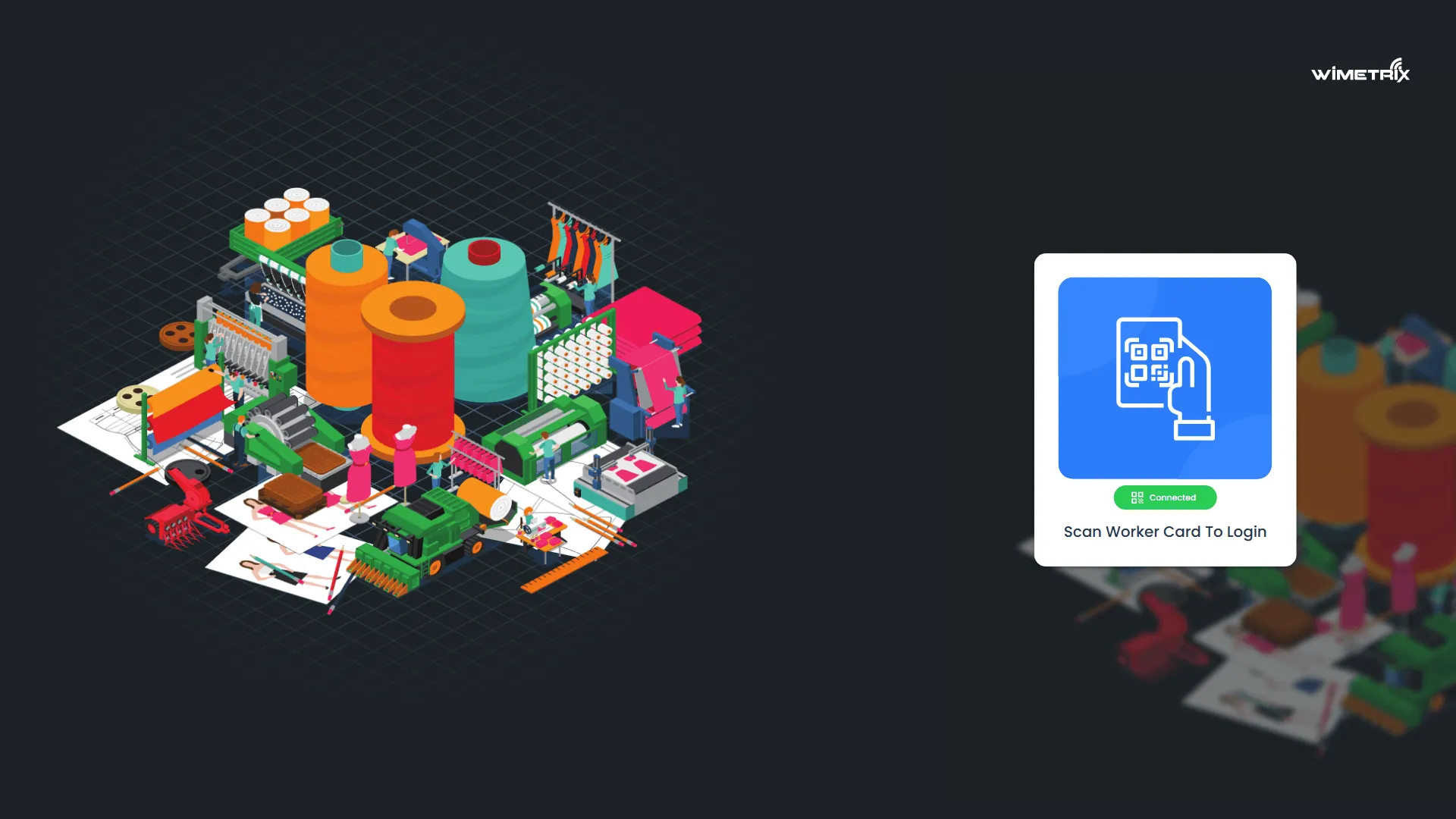
Section titled “Login Process”- Users log in by scanning a worker card (CBL employee barcode or a QR sticker generated by WiMetrix).
- Access is granted to the main dashboard upon successful authentication.
Main Screen & Weighing
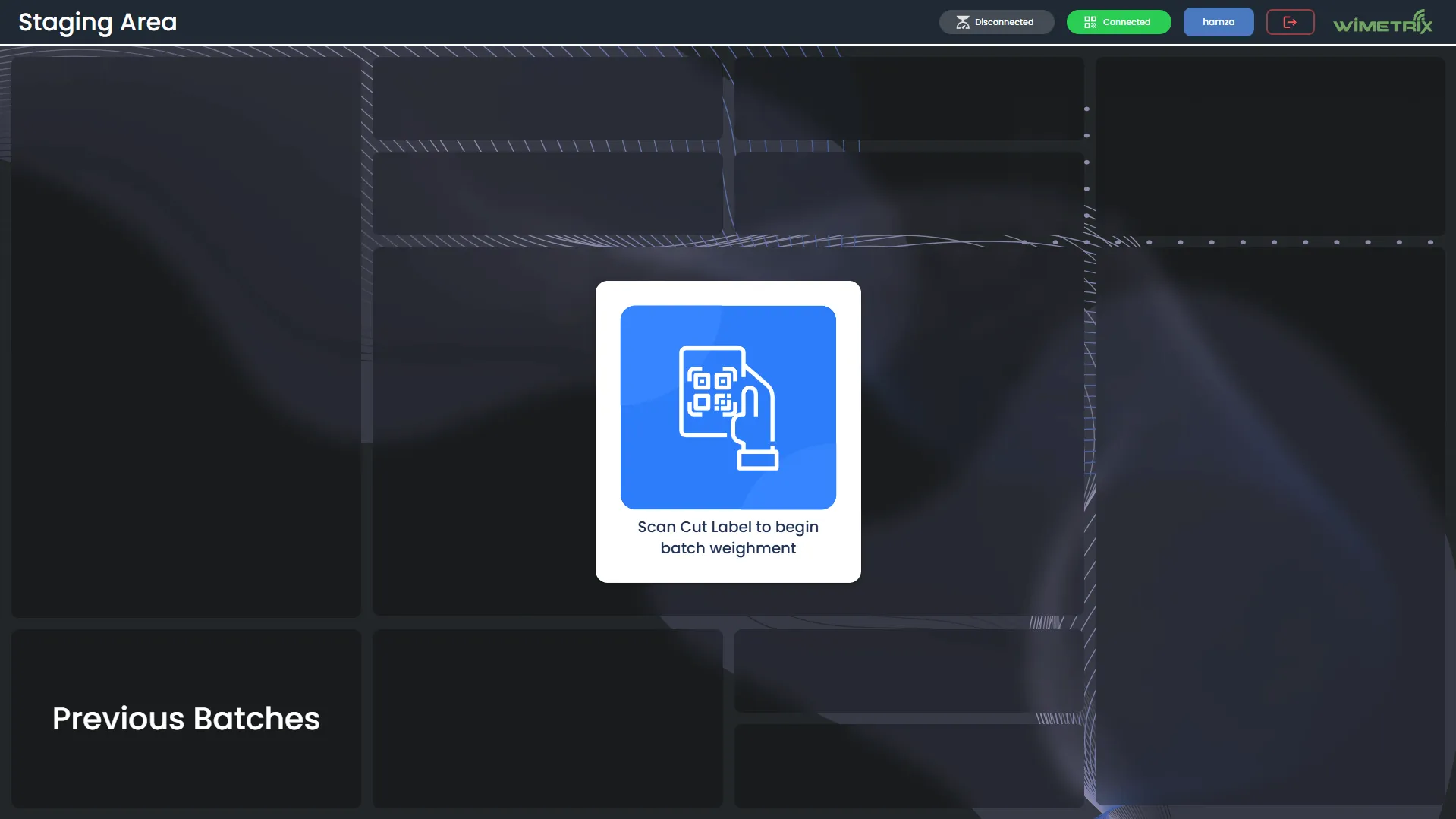
Section titled “Main Screen & Weighing”The main screen allows a user to begin the weighing process by scanning a Cut Label. It’s important to note that only cuts that have been completely cleared from the Rigid area can be scanned here. The main screen also features a Previous Batches tab, where weight data and key performance indicators (KPIs) can be viewed.
Batch and Sub-batch Creation
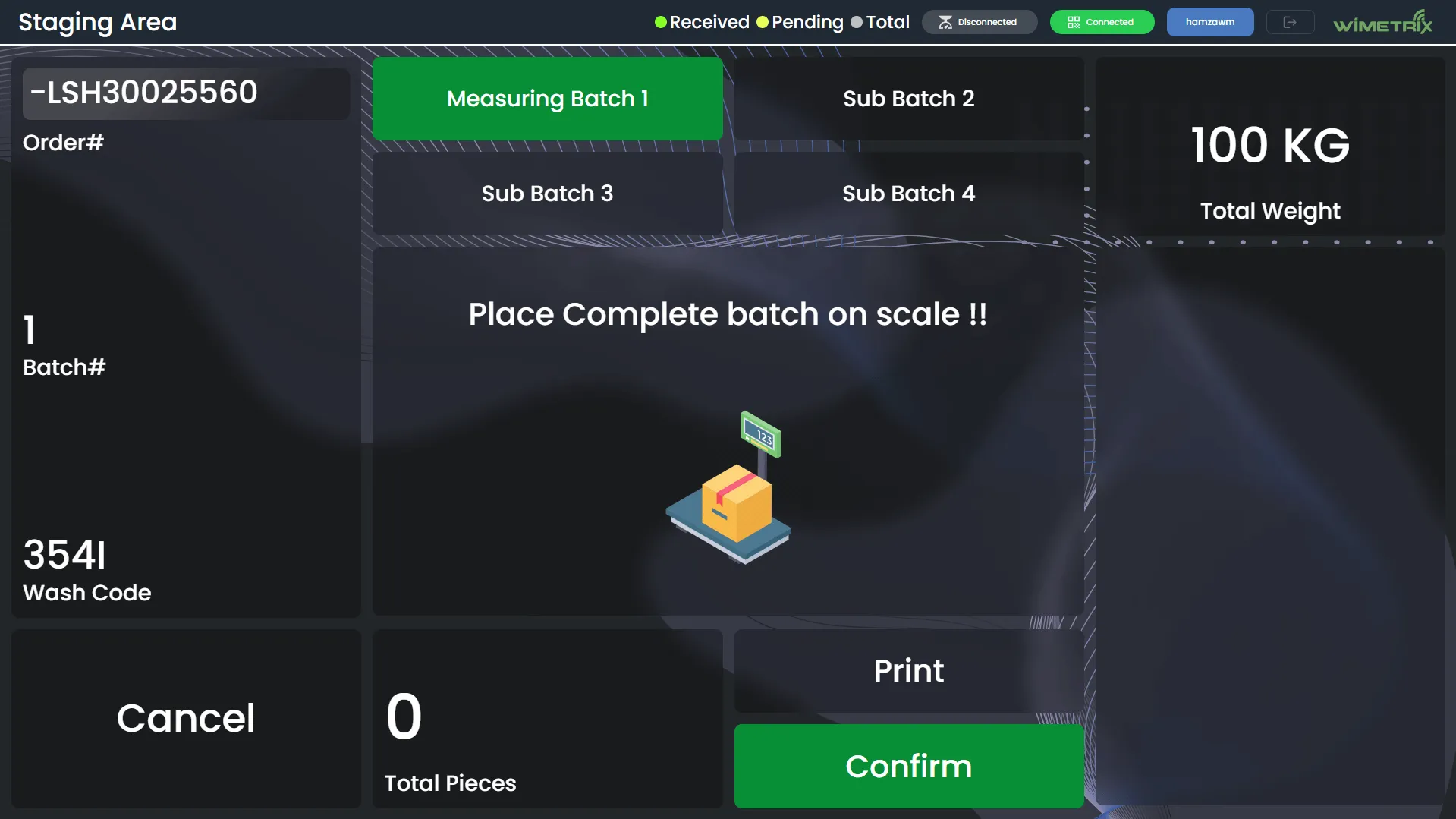
Section titled “Batch and Sub-batch Creation”When a cut is scanned, the application displays the associated order, batch, and process. The batch number starts from 1 and resets every month. The user must then choose whether to create a Batch or a Sub-batch for the weighing. This process can be canceled at any time, which will prompt a confirmation message
Weighing Process
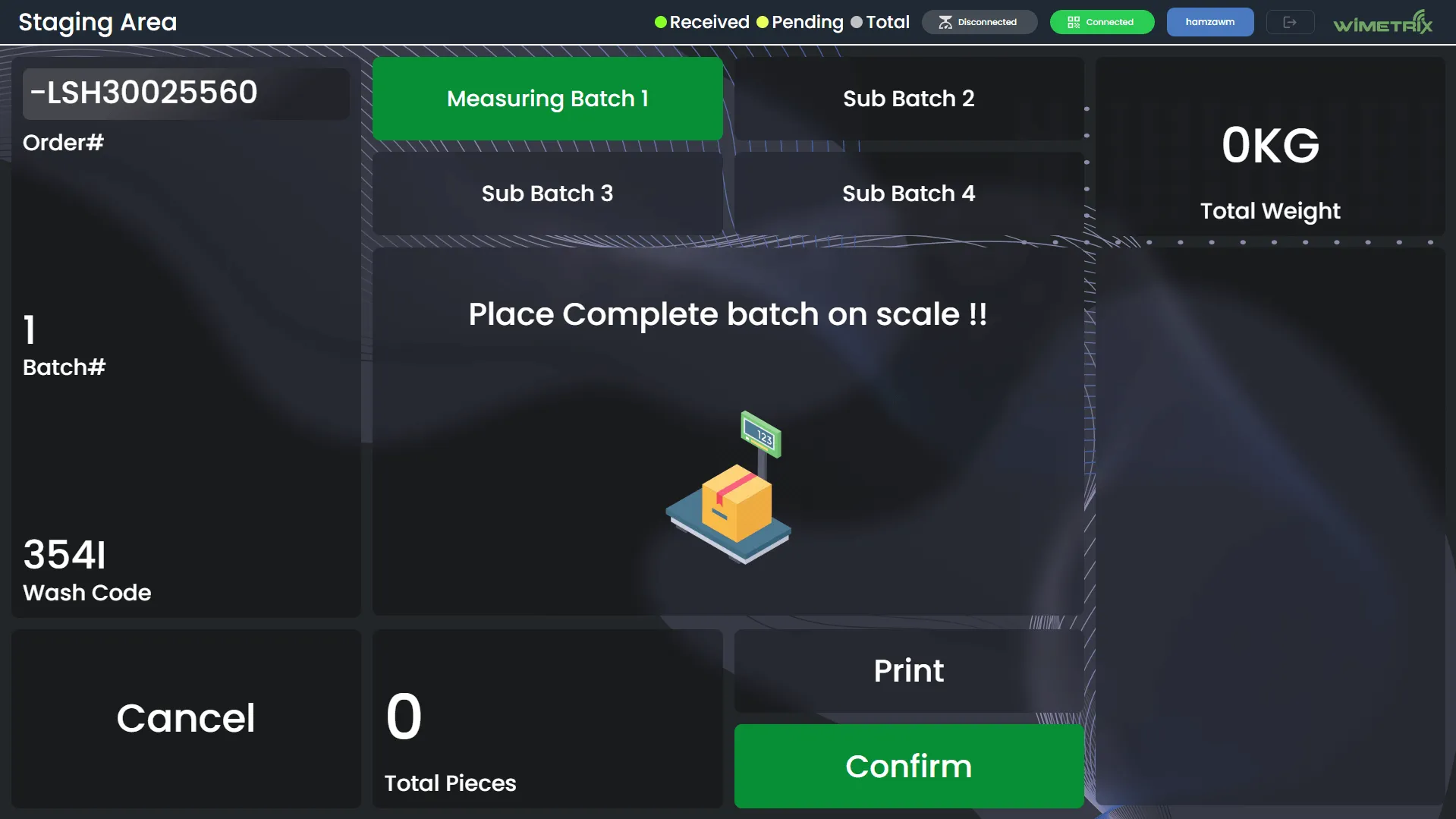
Section titled “Weighing Process”- Placing the Weight: If a single Batch is chosen, the user is prompted to place the complete batch on the scale. The total weight is visible on the top right of the screen at all times.
- Confirming the Weight: The Confirm button becomes active once the weight has been placed on the scale. This process can be canceled at any time.
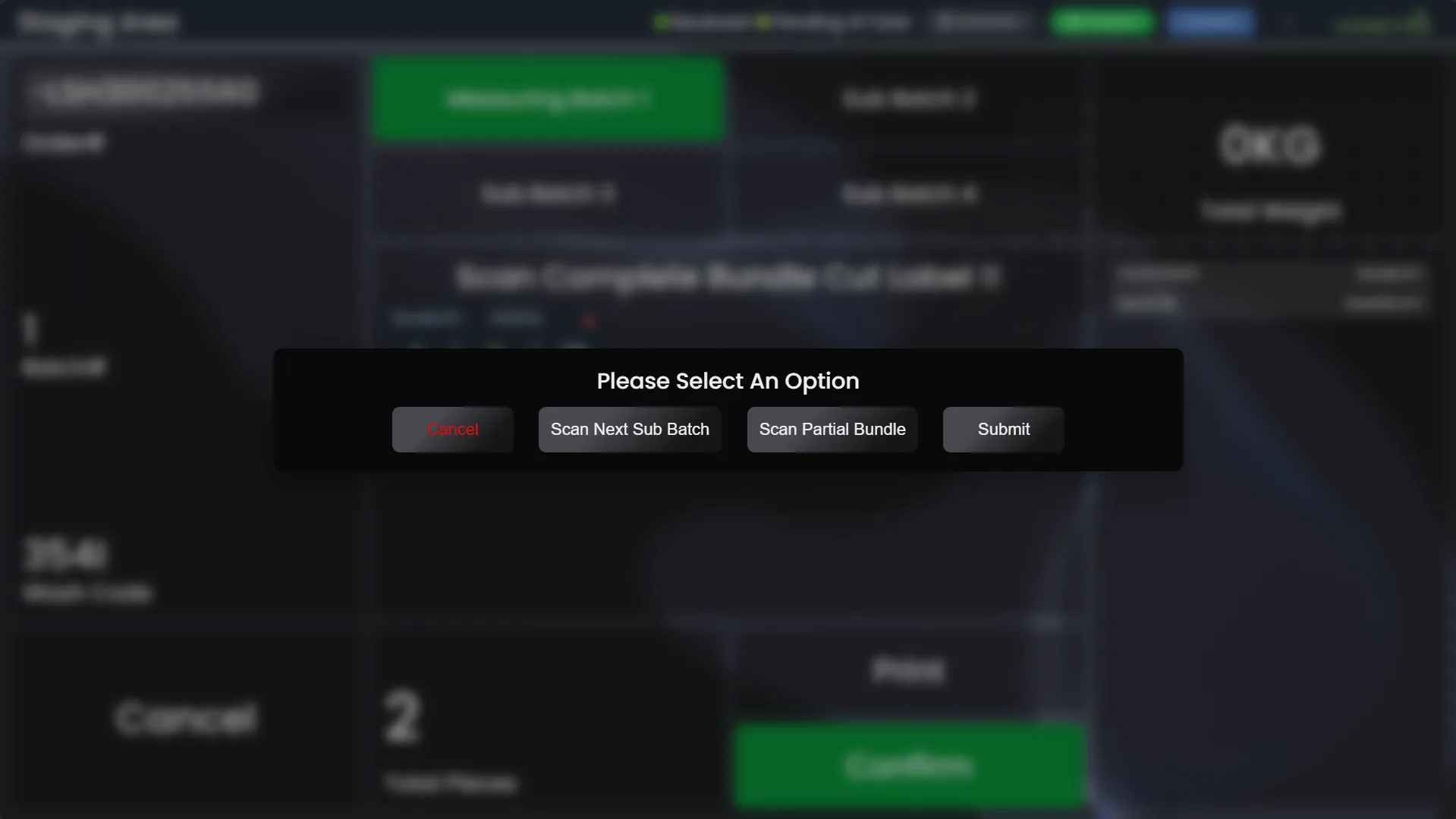
- Bundle Scanning: After confirming the weight, the user is prompted to scan the bundle cut labels of the bundles that have been completely scanned. The scanned bundles are displayed on the right side of the screen in real time.
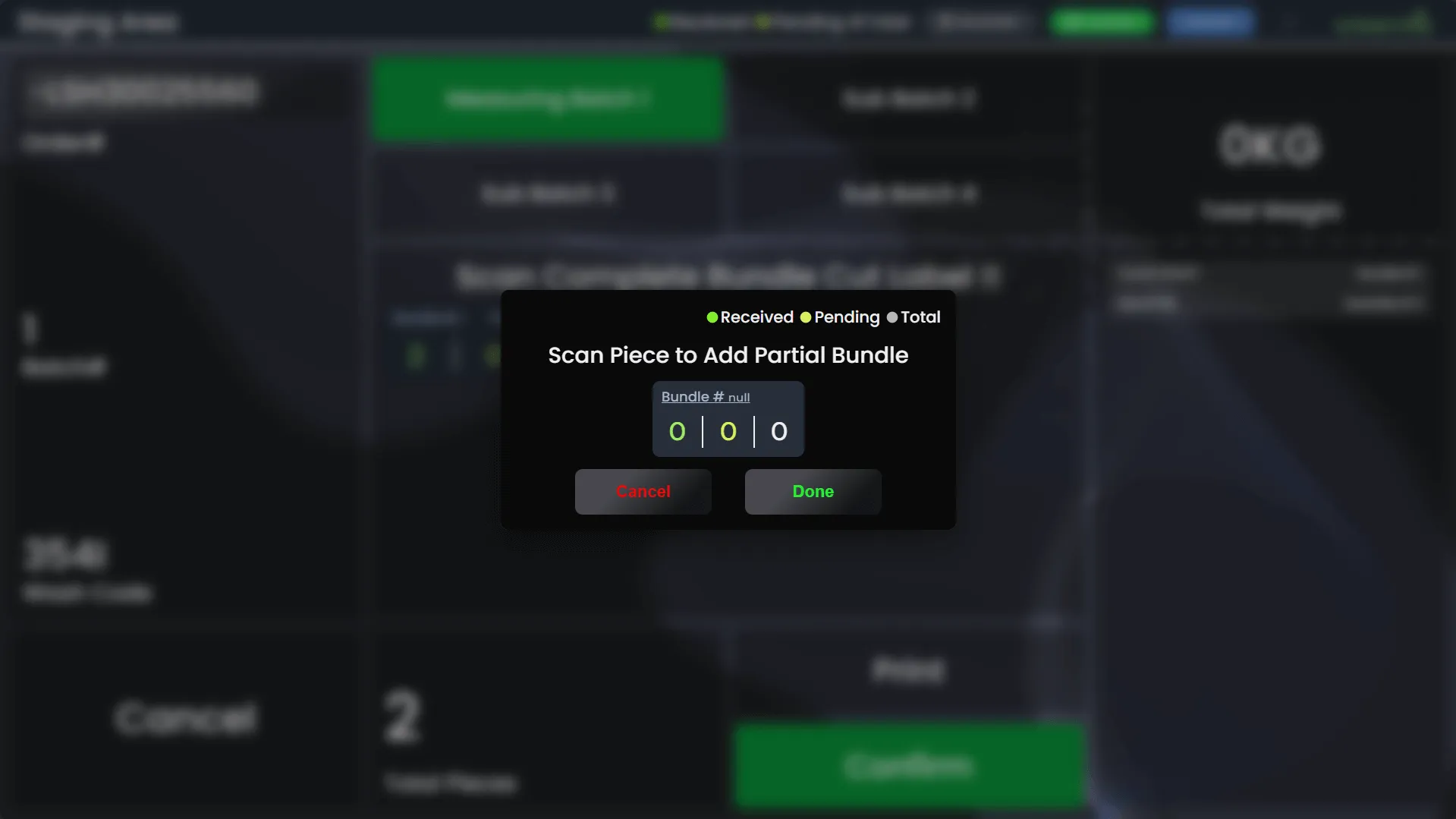
- Partial Pieces: Following the bundle scan, the user is asked if any bundles were placed partially. An option to scan partial pieces is available, showing the bundle quantity, as well as the number of pieces already scanned and the remaining pieces. If a partially scanned bundle is scanned again, the application will prompt the user with the number of remaining pieces. The user can confirm or remove unwanted bundles before processing.
- Print and Submit: After successful scanning, the user can either exit or print the batch. The application generates a QR code on the batch card for use in the next phase.
Previous Batches Summary
Section titled “Previous Batches Summary”-
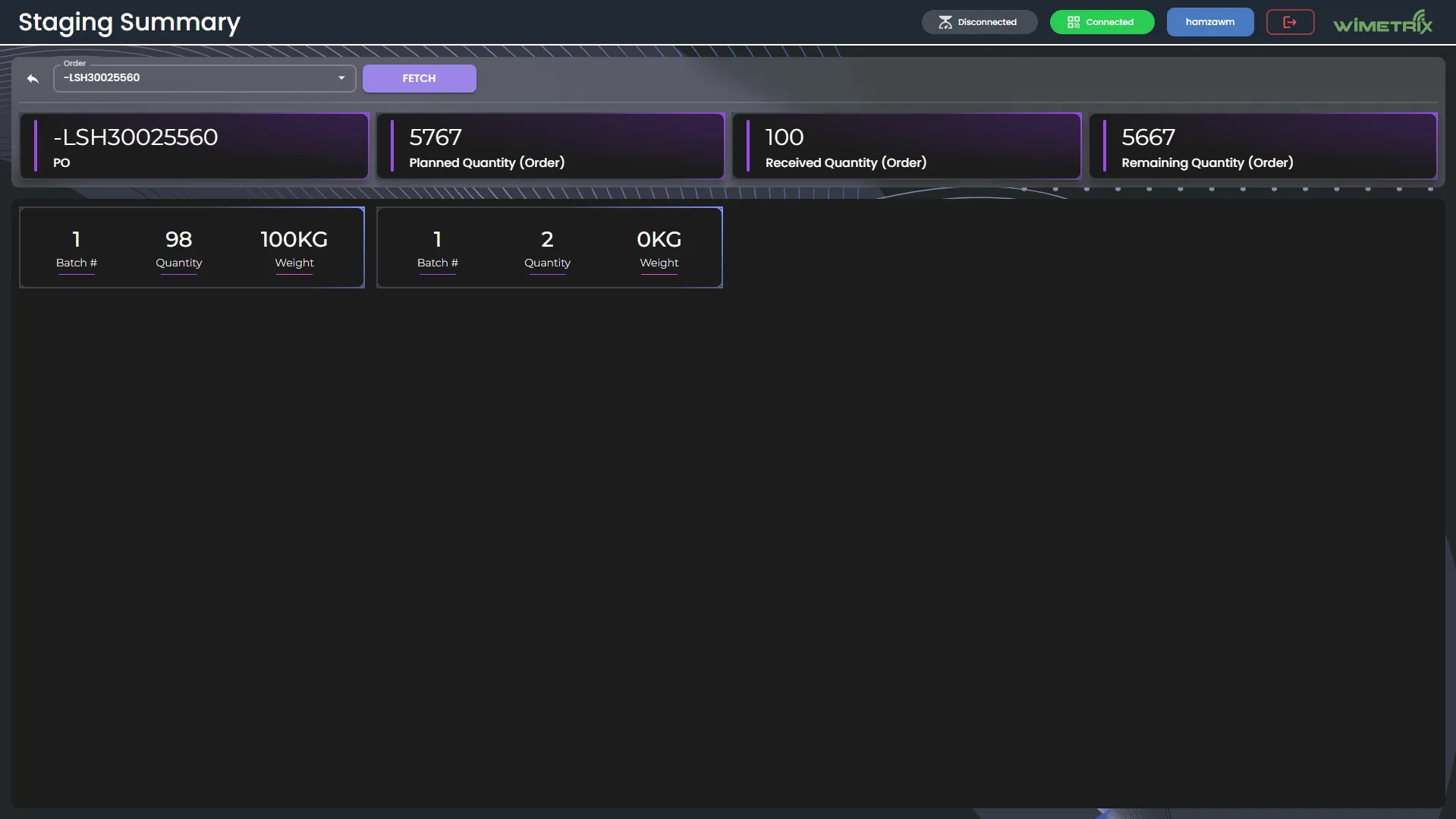
By selecting the Previous Batches button, the user is directed to a Staging Summary screen. Here, they can search for a PO# to view weight data and KPIs.
-
The application provides separate views for Incomplete and Complete summaries
-
On scanning Cut Label that is used in batch application will show a dialog asking to view the batch
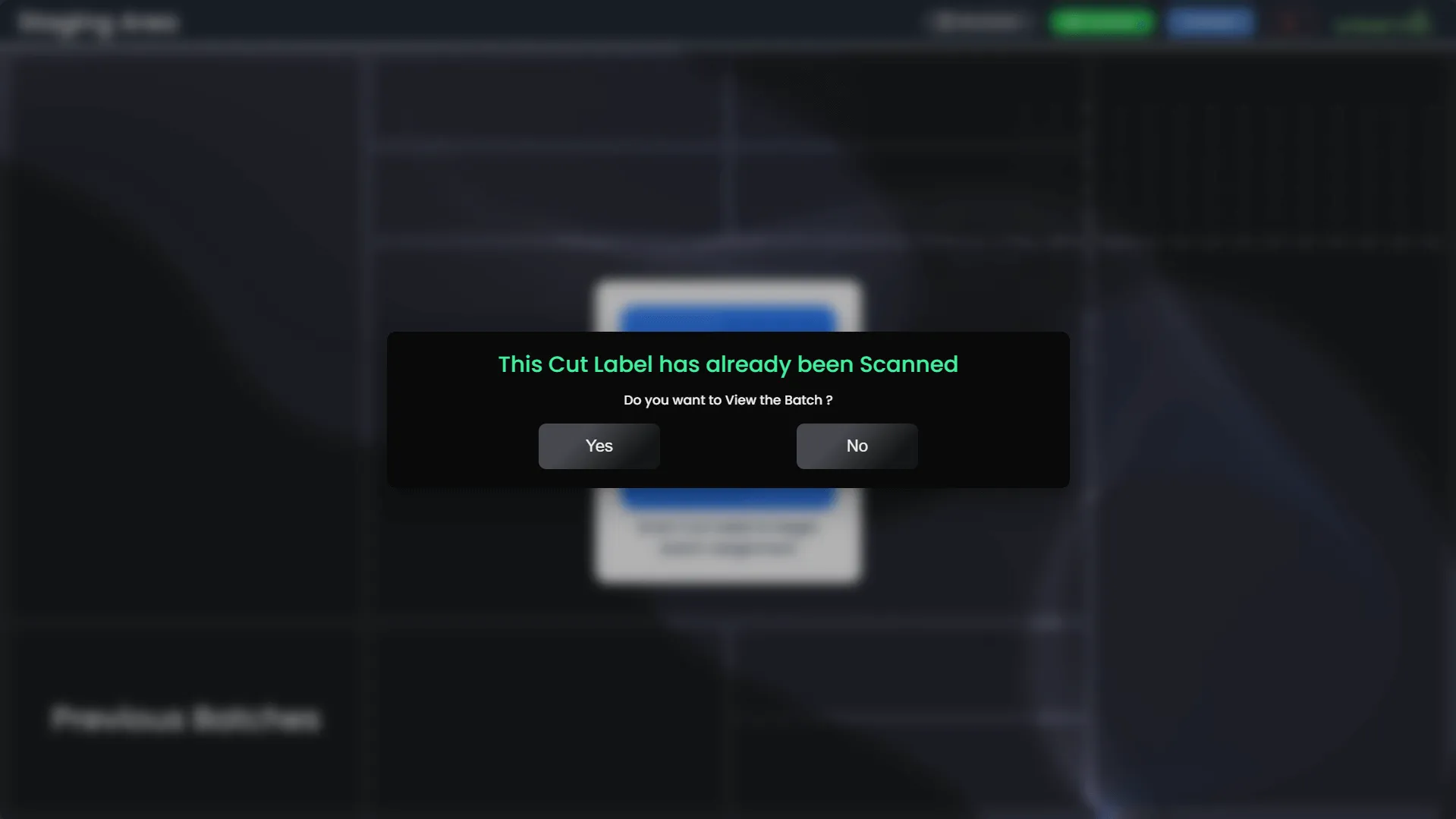
- On Selecting Yes Batch Information page will open